Introduce yourself
There are three parts for this submission:
- Pronunciation of your first and last name
- Introduce yourself (200 words minimum)
- Your embedded photo
Instructions
Pronunciation of your first and last name
-
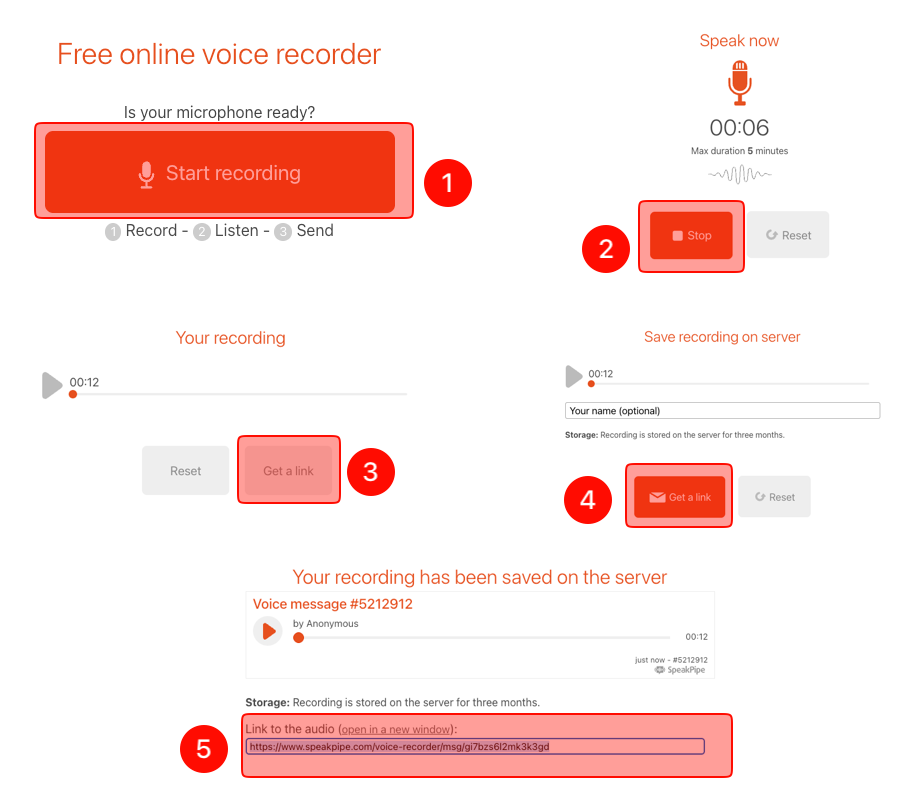
Go to https://www.speakpipe.com/voice-recorder 1. Click "Start recording." 2. Say your preferred first and last name, and click "Stop."
- For example, if your name is Kimberly but you go by Kim, just say “Kim” and your last name.
- Click "Get a link."
- Click "Get a link" again.
- Highlight the link and copy.
- You will paste this link at the top of "Introduce yourself" assignment.
-
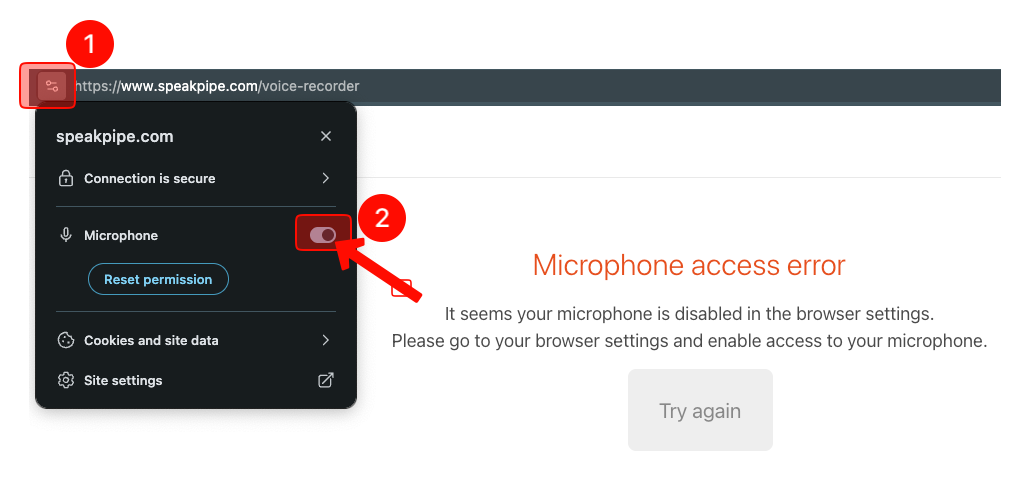
If you get "Microphone access error":
- Click the "settings" on your browser.
- Turn "Microphone" on.
- Alternatively, you can use your phone or tablet to create a voice link.
Introduce yourself
- Write a post (minimum 200 words) where you let the rest of the class know about the following:
1. Your name, (5 points)
- How you'd like to be called, if you have a preference (Otherwise, do not state that you do not have a preference),
- Your major year and minor (if applicable), (5 points)
- College standing (freshman, sophomore, junior, or senior), (5 points)
- Any future plans after graduation, such as entering a specific industry, pursuing graduate school, etc., (5 points)
- Hobbies/interests, (10 points)
- What kind of classes you have taken so far, especially if they have any link with social research. (10 points)
- Why you are interested in social sciences. (10 points)
Embed your photo
-
This assignment requires you embed a photo of yourself
- Do not attach a photo file. It must be embedded.
- The purpose is to help us recognize you, so choose a clear photo where your face is visible.
- Please avoid using Snapchat-style filters (tongue, dog ears, etc.).
- Make sure your photo is upright and not rotated or upside down.
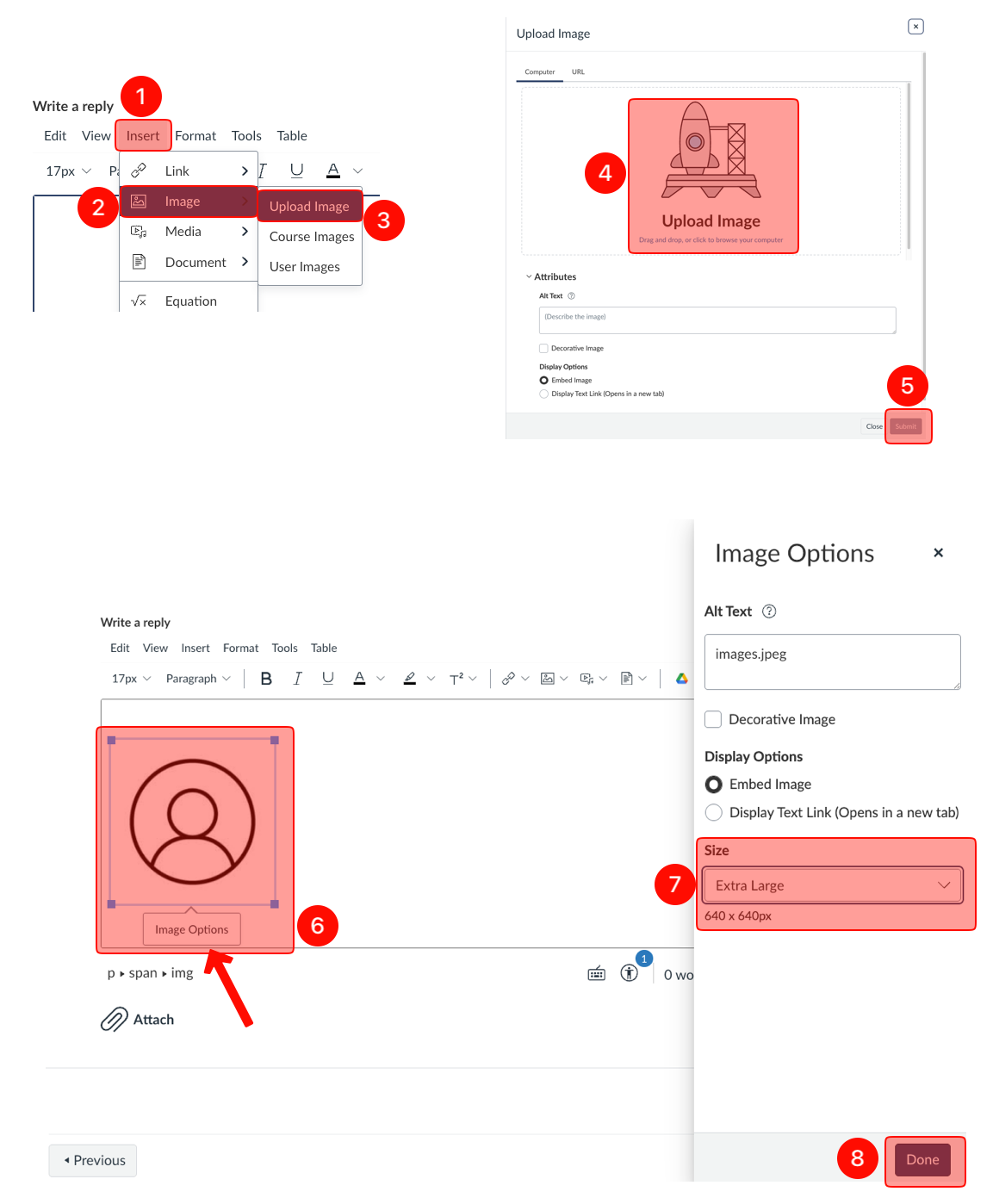
- After completing #2 "Introduce yourself" part, click "Insert."
- Click "Image."
- Click "Upload Image."
- Click "Upload Image," choose or drag your photo.
- Click "Submit."
- Click on your photo and click "Image Options."
- Choose "Extra Large."
- Click "Done," and finally click "Reply."