RStudio install
RStudio account and packages assignment
- Students cannot continue this class without getting full credit from this assignment (unlimited attempts) within the deadline period.
- This class will teach you how to use RStudio. You will be able to use this software on your browser.
- You need to have a RStudio (Posit) Cloud account. The new name of RStudio Cloud is Posit. We will use the name of RStudio Cloud and Posit interchangeably.
- Lab lectures are listed in the syllabus (Table 3: Course schedule), with topics beginning with “RStudio.”
Assignment video
- The video below shows how to complete this assignment from start to finish.
- Do not submit this assignment without watching the video and read the instructions together.
Assignment instructions
Create a free RStudio Cloud account
RStudio website
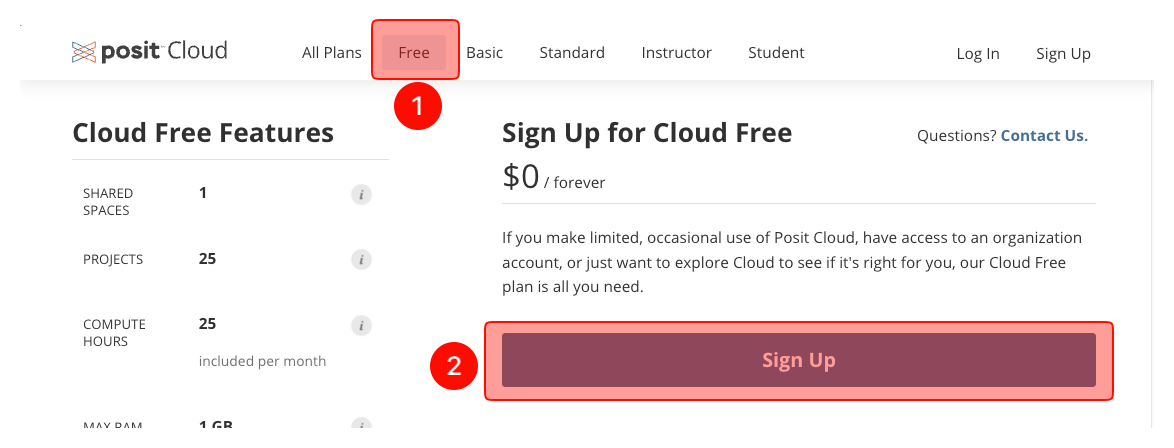
- Go to RStudio website and choose “Free.”
- Click "Sign up."
Email address and a password
-
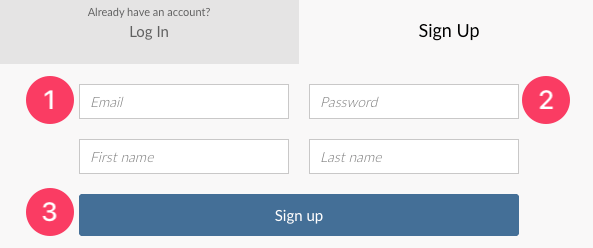
- Put your email address
- Put a password (at least 10 characters). You will share your password with me, so note it somewhere down. As you see I will have access to your password. That's why you should not use this password somewhere else. You must:
- Use upper and lower case letters
- Use numbers
- Use special characters
- Click "Sign up".
-
Bitwarden free password generator.
- I recommend Bitwarden free password generator.
Verification
- Go to your email inbox and click “Verify.”
- You will be directed to RStudio website. If not, click on the link.
New project (RStudio labs)
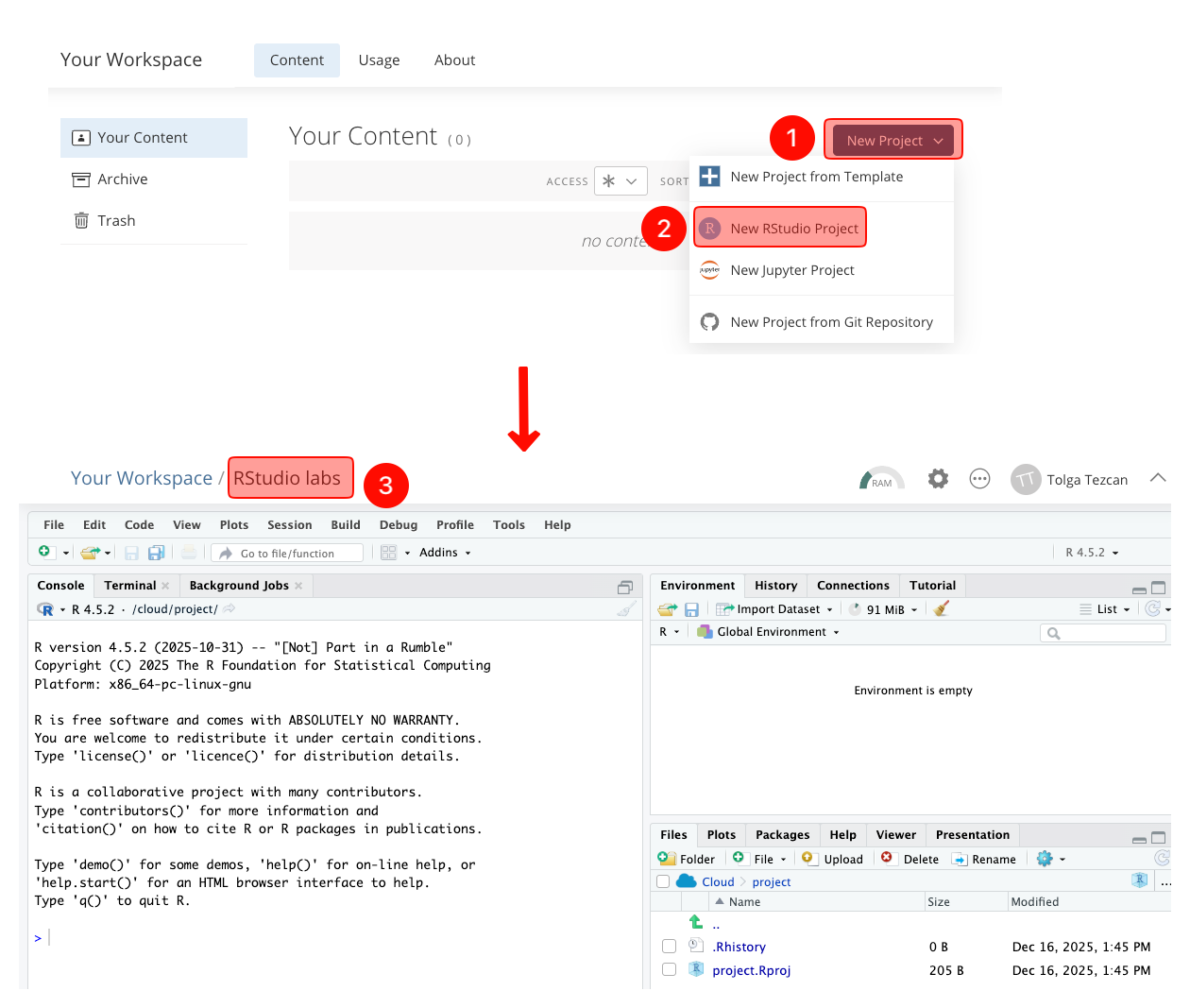
- Click "New Project."
- Choose "New RStudio Project."
- You will wait 10-15 second while RStudio deploys the project. If it takes longer, refresh your page.
-
On the new screen, click on “Untitled Project” and type “RStudio labs”.
-
RStudio labs project
- Many users mistakenly create a separate project for each lab. This is incorrect.
- You will not create a new project for each lab.
- Instead, you will always work within the existing 'RStudio labs' project throughout the semester.
-
Install and load the packages and data
R Script file code
-
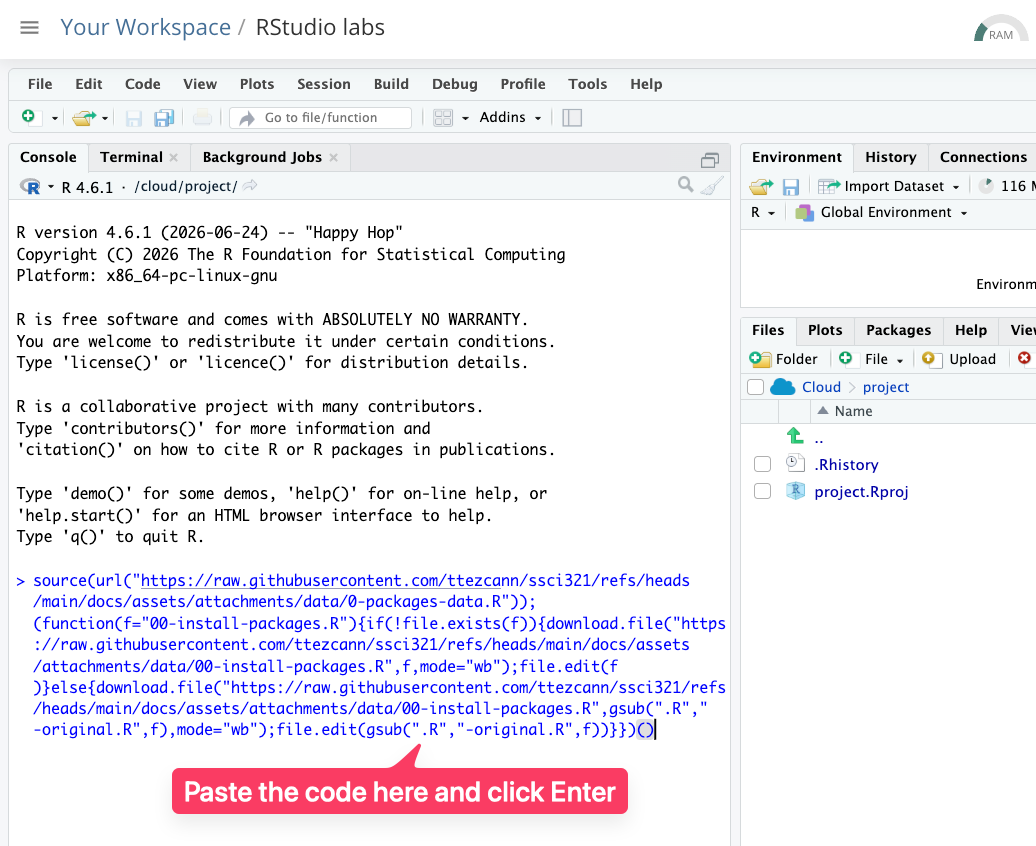
[[Copy the code]] below ➜ Paste into [[RStudio console]] ➜ Hit Enter
-
source(url("https://raw.githubusercontent.com/ttezcann/ssci321/refs/heads/main/docs/assets/attachments/data/0-packages-data.R")); (function(f="00-install-packages.R"){if(!file.exists(f)){download.file("https://raw.githubusercontent.com/ttezcann/ssci321/refs/heads/main/docs/assets/attachments/data/00-install-packages.R",f,mode="wb");file.edit(f)}else{download.file("https://raw.githubusercontent.com/ttezcann/ssci321/refs/heads/main/docs/assets/attachments/data/00-install-packages.R",gsub(".R","-original.R",f),mode="wb");file.edit(gsub(".R","-original.R",f))}})()- On the right side of the code box above, you will see a copy sign . Click it to copy the code.
- Paste it into RStudio console, and click enter.
-
[[Wait]]
- You will see a ⛔ STOP ⛔ sign.
- Codes are running in the console. You should wait until the ⛔ STOP ⛔ sign disappears and no more code is running.
- Just wait, DO NOT click the ⛔ STOP ⛔ sign.
-
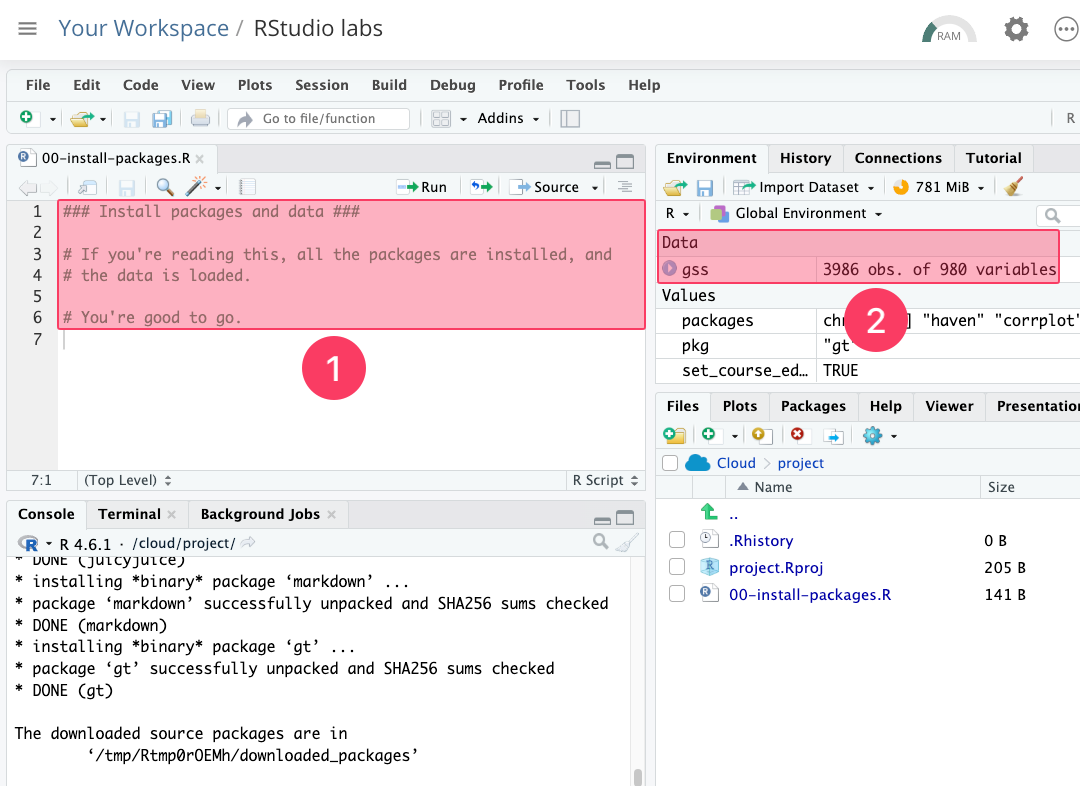
When you see the script file opens,
- You read "You're good to go", and
- "gss" appears under the "Environment - Data section," everything is all set.
-
Initial setup
The initial setup takes approximately 5–10 minutes; thereafter, it will take only 5 seconds.
Submission to Canvas
- Click on "[gr] RStudio lab assignment: Account and packages" under the "Getting ready for the class" heading (Week 1) on Canvas.
- There are two questions:
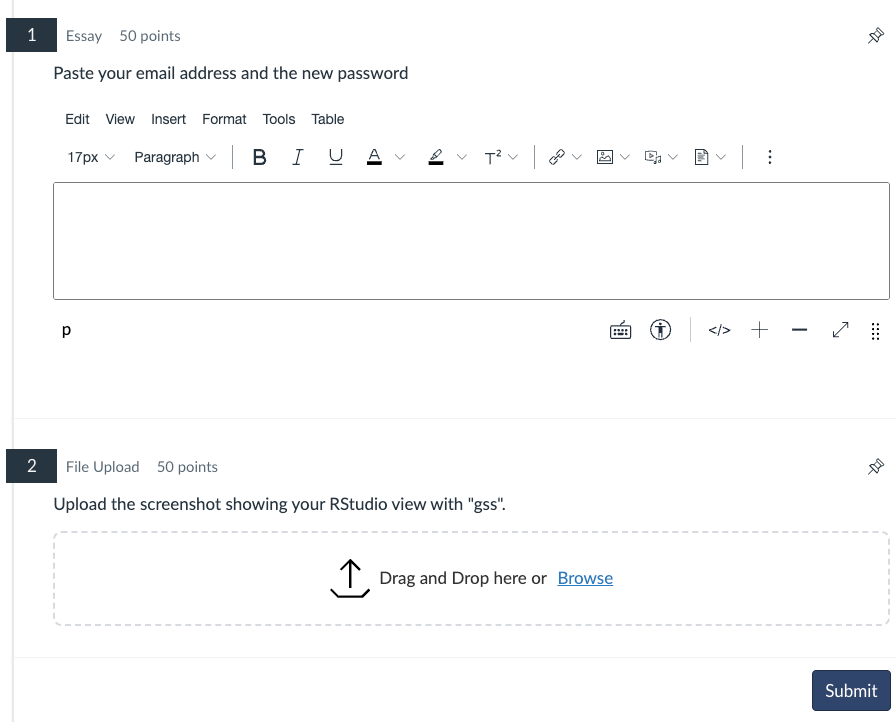
- Paste your email address and the new password.
- Upload the [[screenshot]] showing your RStudio view with "gss". Your screenshot should look like the image above.